Create/Edit Event – Slots
On the slots tabs you create the structure of the schedule. This must be done before sending out invites.
Changing the structure of the schedule (start & end time, location) after investors are booked already is a quite
cumbersome and manual process.
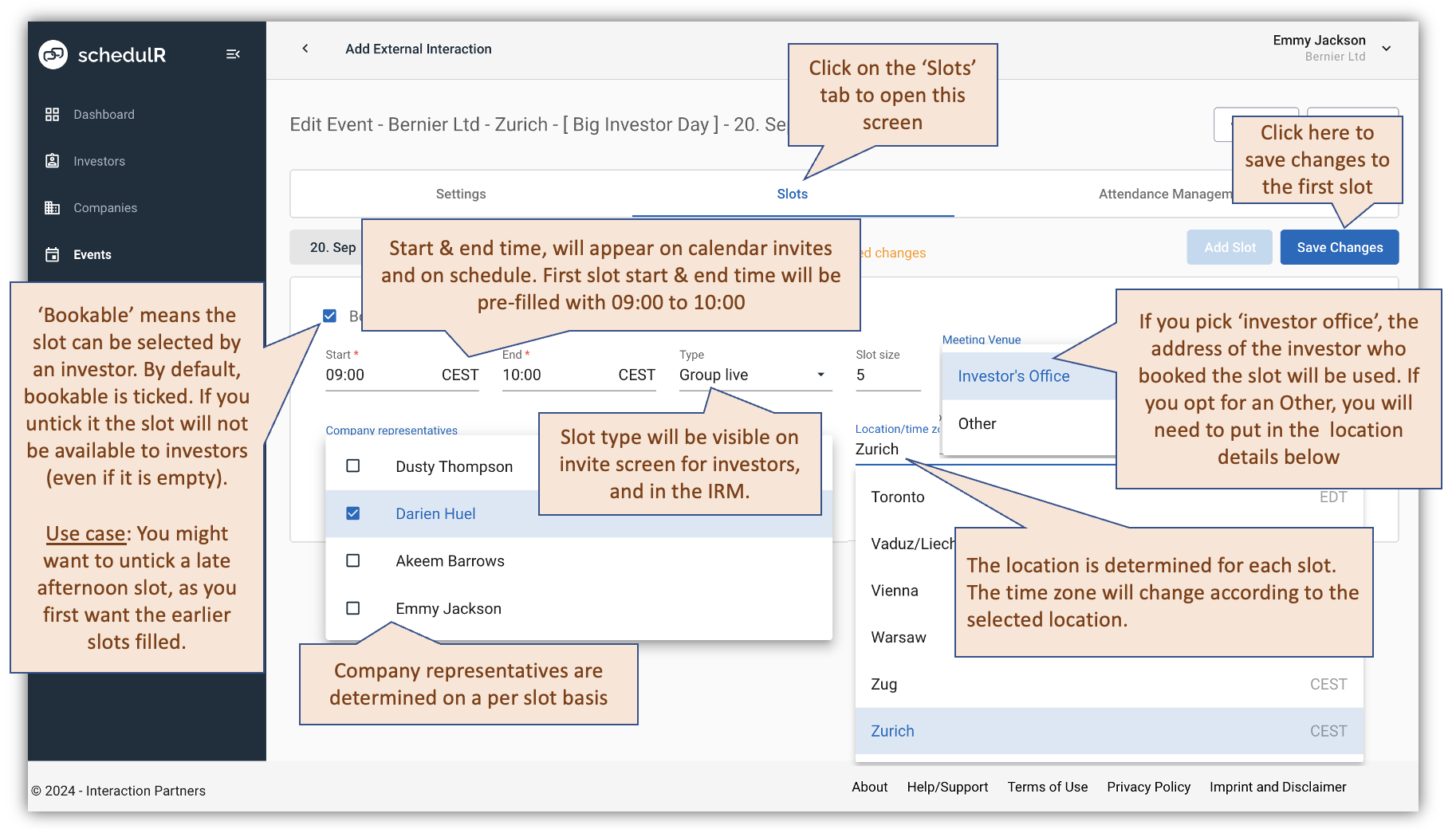 Figure 7.5 – Create/Edit Event – Live Roadshow
In case you are organizing a virtual roadshow, set ‘Slot Type’ accordingly (1:1 virtual or group virtual) and then
provide details via the venue field. Please note that ‘Zoom conference’ will only be available if you have
provided your account details as described in Section View and adjust your company profile
 Figure 7.6 – Create/Edit Event – Virtual Roadshow
Adding additional slots is quite straightforward (see figure below). No matter in which order you add them,
they will always be sorted by start-time. By default, the start time of the second slot is equal to the end time of
the previous slot, and the end time is plus one hour to the start time. Please be aware that you must check
manually that the schedule makes sense, so you need to check that slot times do not overlap, and transfer
times are sufficient.
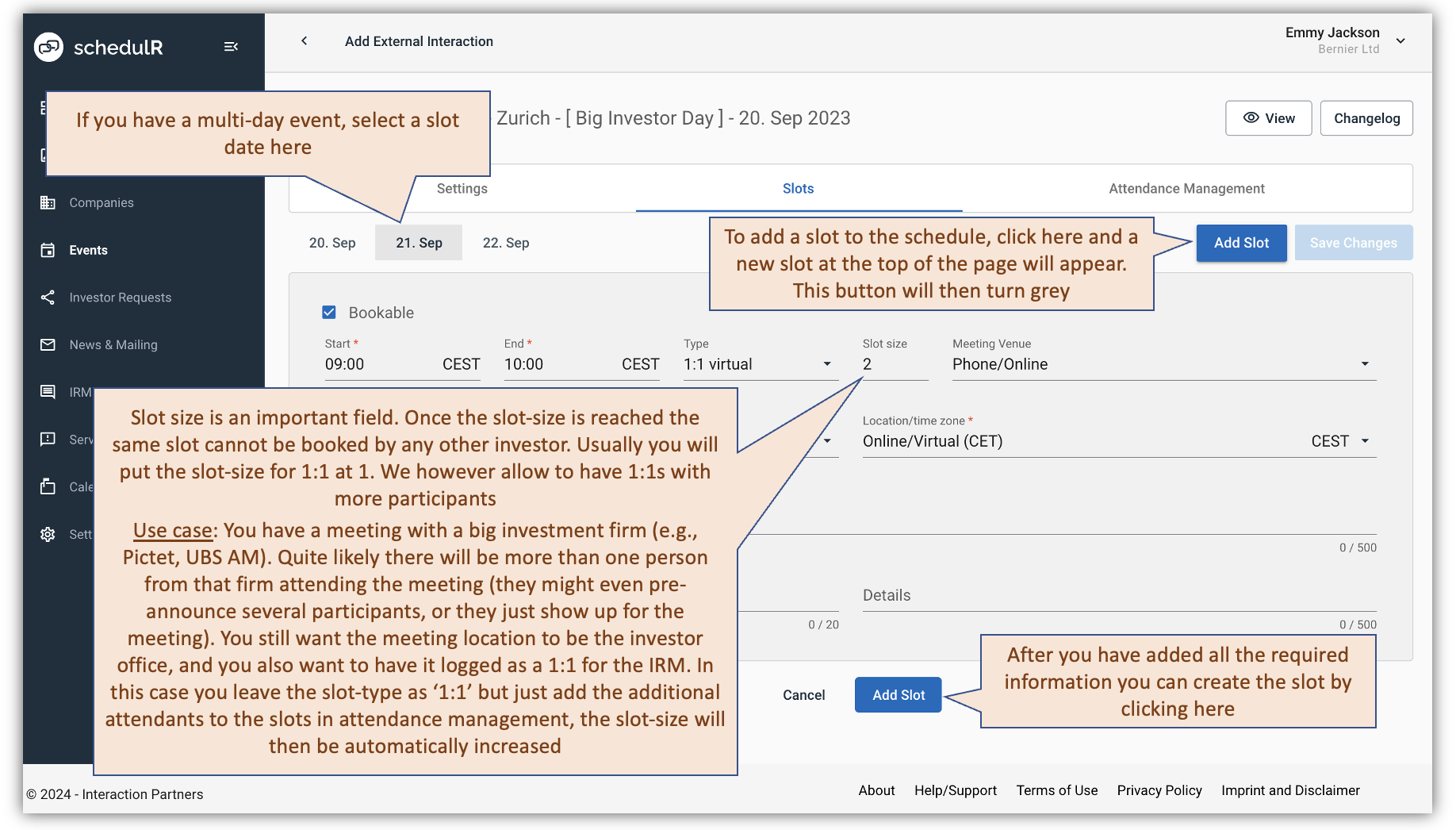 Figure 7.7 – Create/Edit Event – Slots (1/2)
The second part of the settings screen shows how to copy and delete slots. Slot copying can be helpful if you
create slots with the same data but different times or dates.
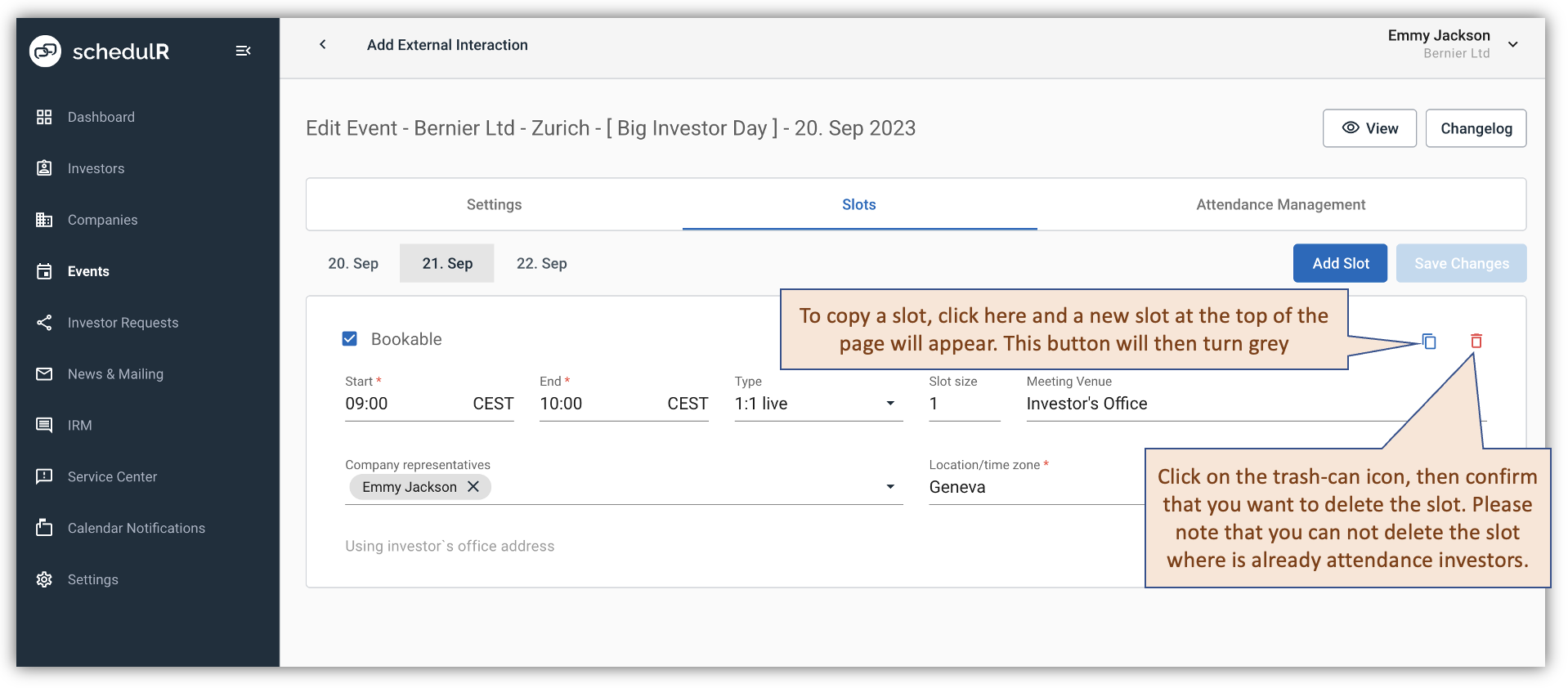 Figure 7.8 – Create/Edit Event – Slots (2/2)