Managing your contacts & distribution lists
In this section we will describe how you can manage your contacts and distribution list. Below you see the
‘Contacts overview’ screen with a description of the available functionalities.
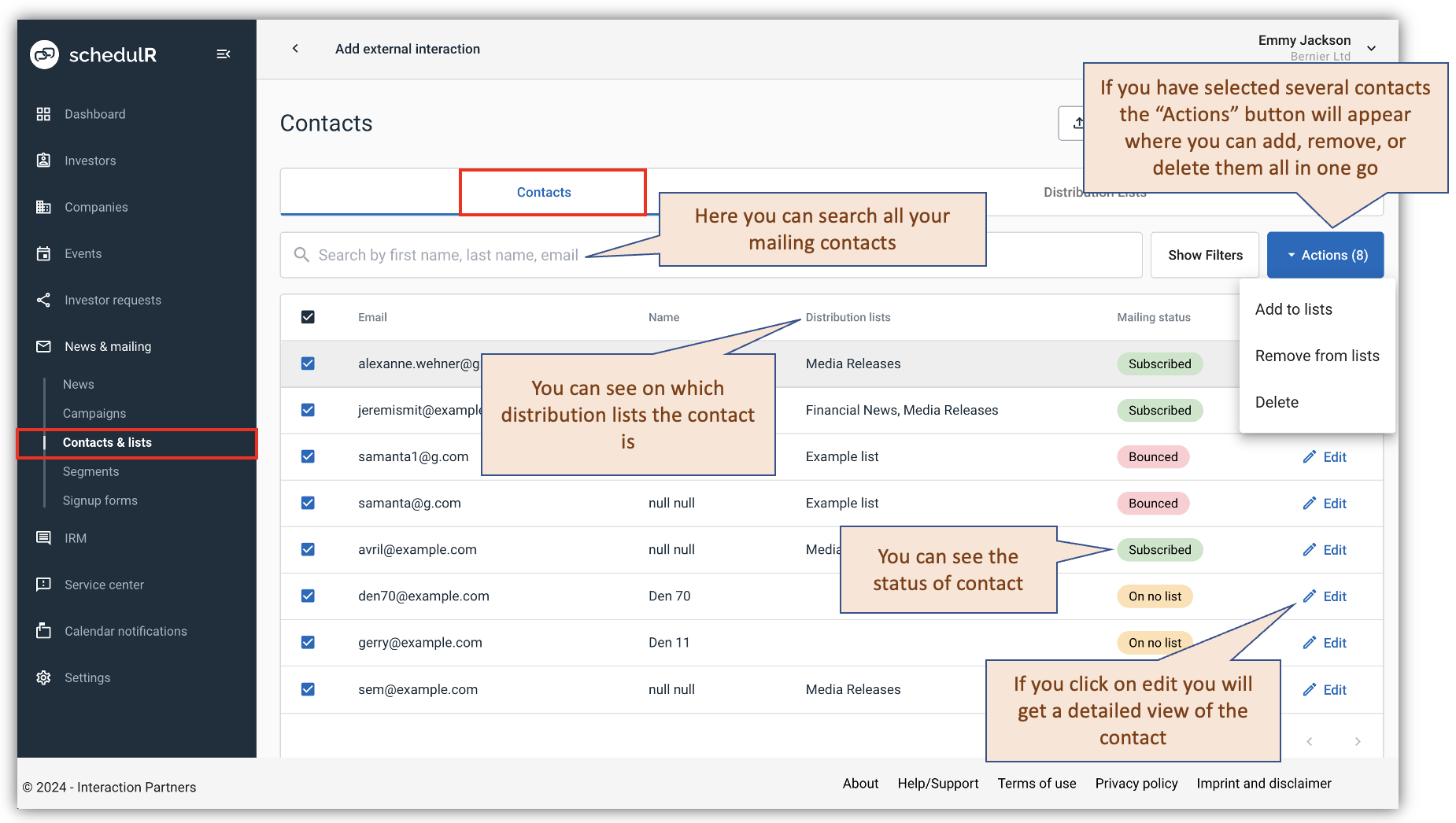 Figure 10.9 – Contacts – Overview page
Export contacts
You can export all your contacts, or filter them by distribution list or mailing status. See the details in the screenshot below.
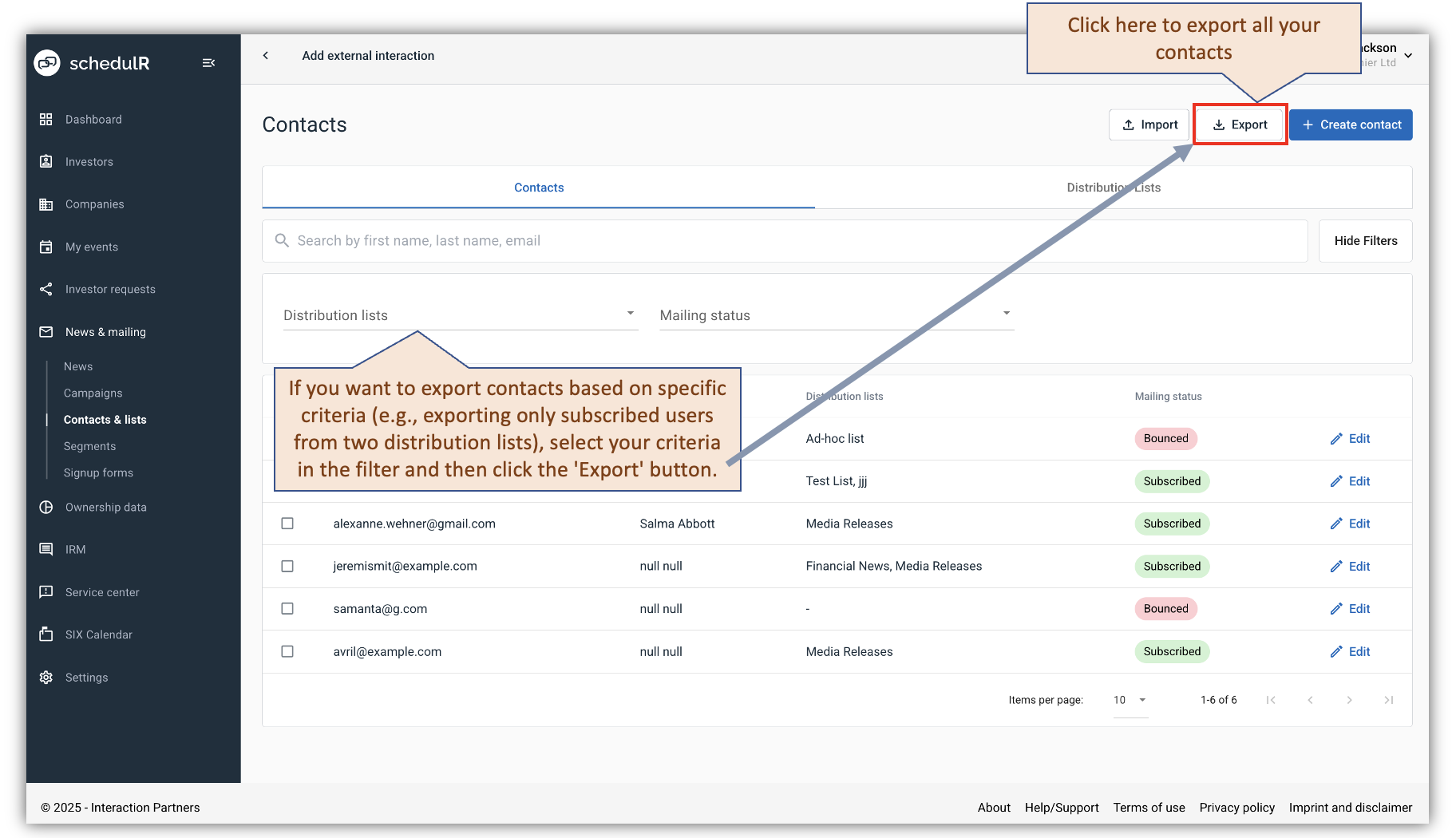 Figure 10.9.1 – Contacts – Overview page
Regarding ‘Mailing status’, status can be:
- Subscribed: The user is subscribed to one or more distribution list
- Unsubscribed: The user has unsubscribed from one or more distribution lists. User will not get any
more mails even if still on the list. - Partially unsubscribed: User has unsubscribed from one, but not all distribution lists. He will still
receive emails from distributions where he has not unsubscribed - On no list: The user is on no distribution list right now and does not receive any emails.
- Bounced: The email has hard bounced (i.e., does not exist anymore) and will not be able to receive
any emails any more.
If you click on ‘Edit’ of a certain contact, you will get a detailed view of the user which looks like the figure
below. It also includes a link to the ‘Mailing Log’ (history) of the contact
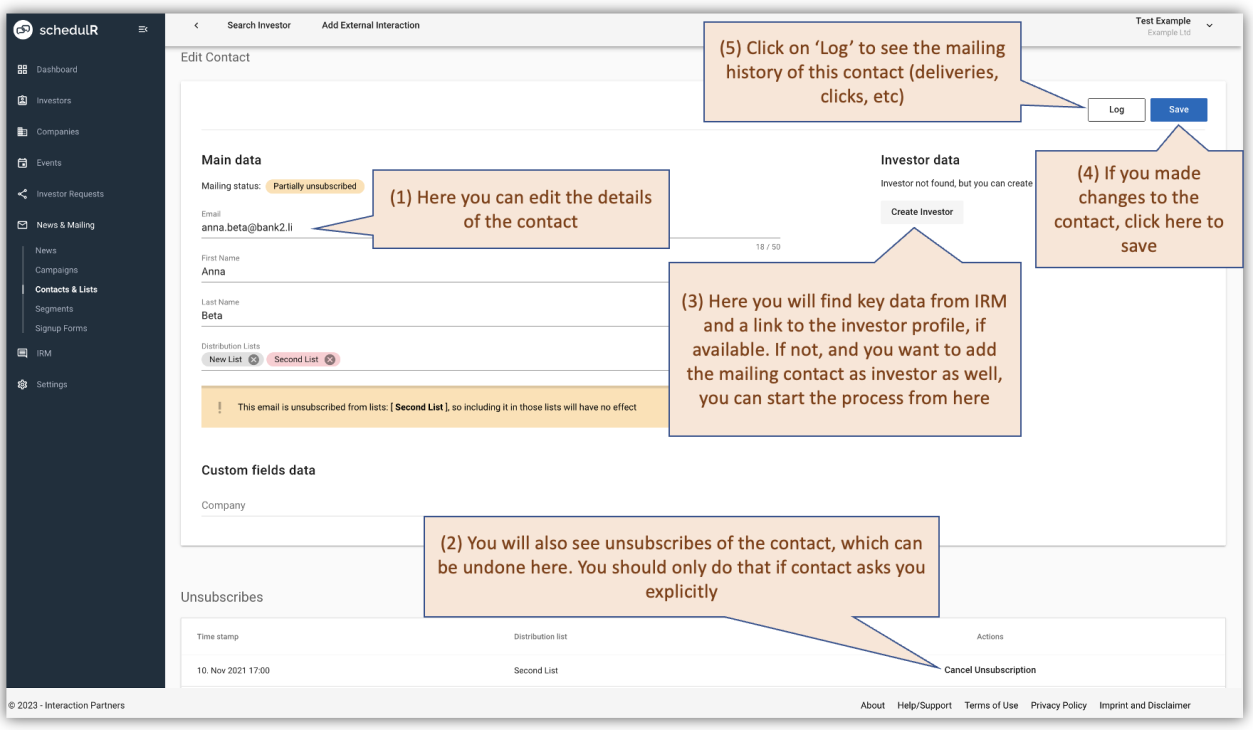 Figure 10.10 – Contact – Detailed view
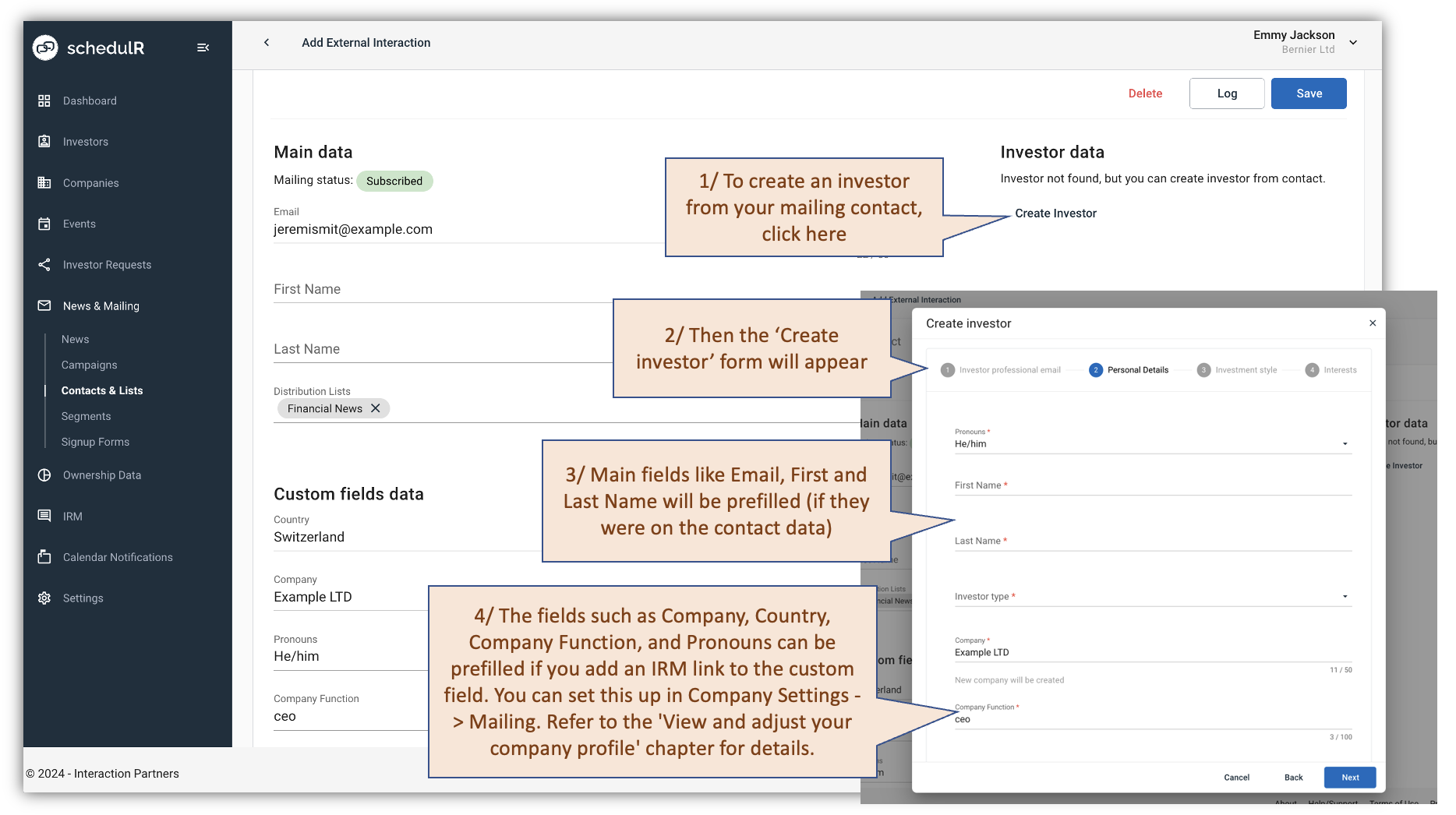 Figure 10.10.1 – Contact – Adding contact to the IRM
Now we will have a closer look on the screens for the management of distribution lists
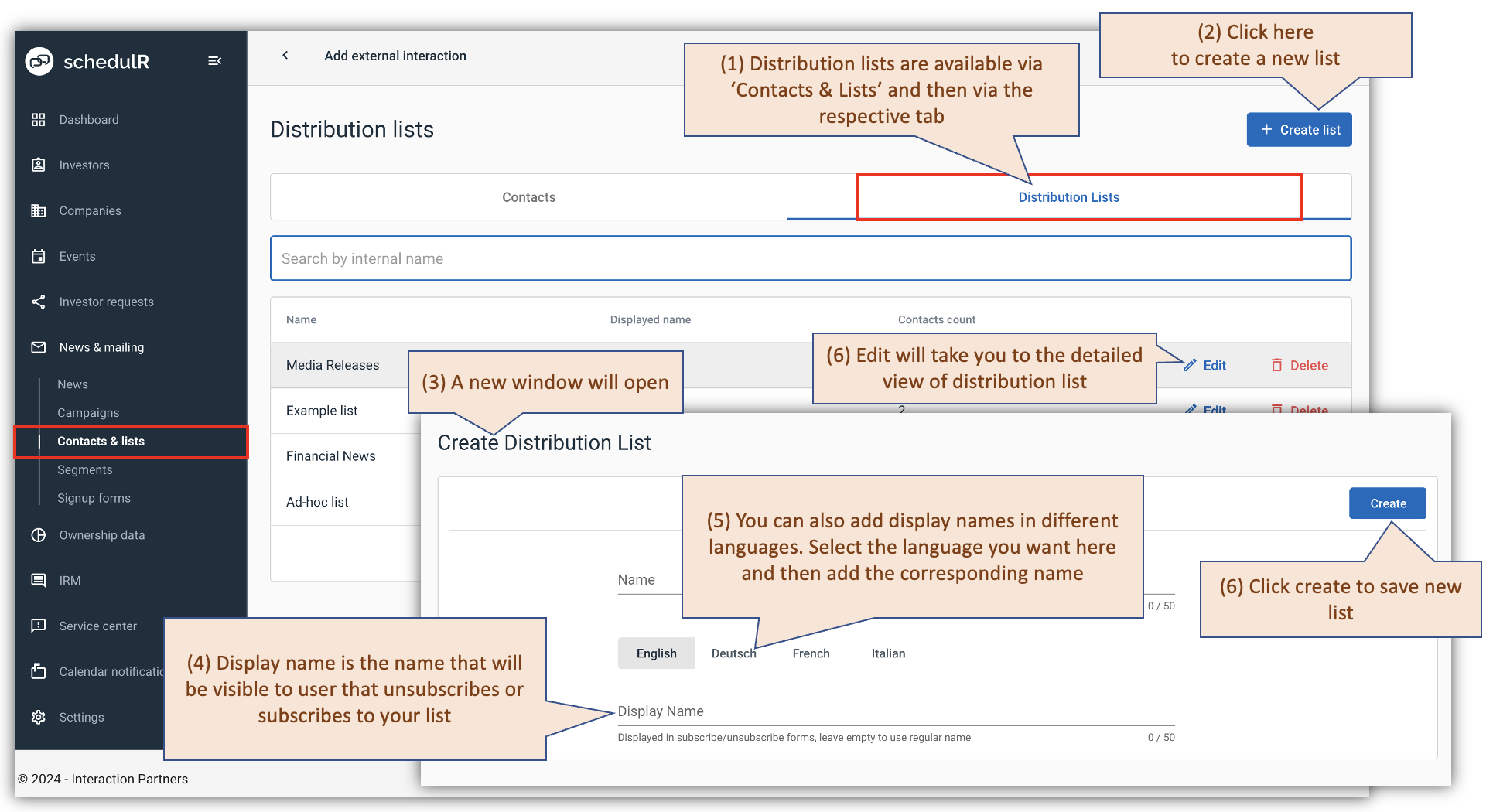 Figure 10.11 – Distribution lists – Overview
On the detailed view of a distribution list you then can add members or download the whole list
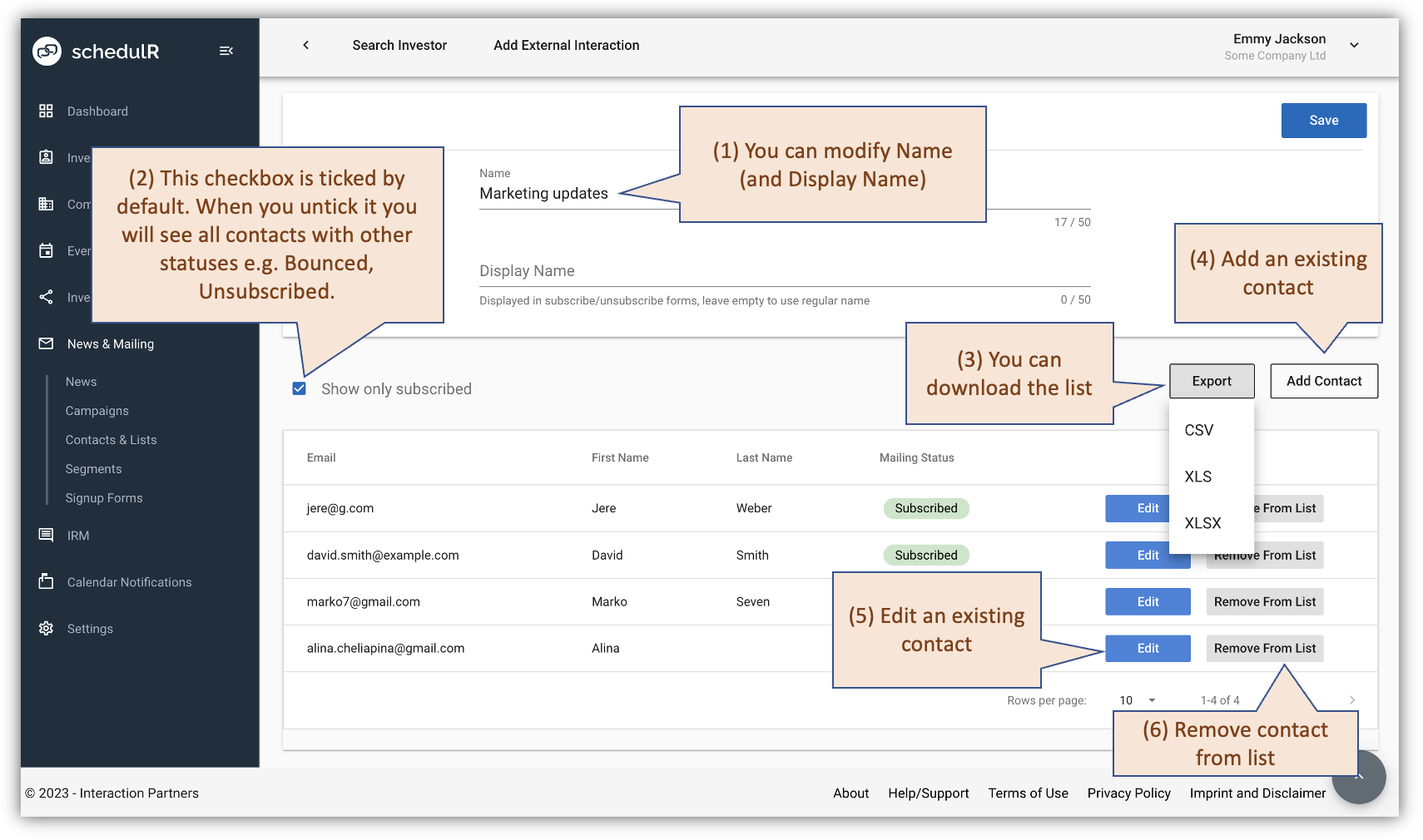 Figure 10.12 – Distribution lists – Detailed view