Adding contacts: Manually or import of existing lists
It is of course possible to add individual emails one by one or import your existing contacts and distribution
lists from existing files.
Please note that in this case compliance with data privacy rules (GDPR etc.) that apply in your jurisdiction and
for the planned usage of the data is your responsibility.
A migration of your existing contacts and distribution lists done by us is part of the regular on-boarding
process, i.e. initially we take care of this.
Please find a description how to add an individual contact to your Mailing contacts below.
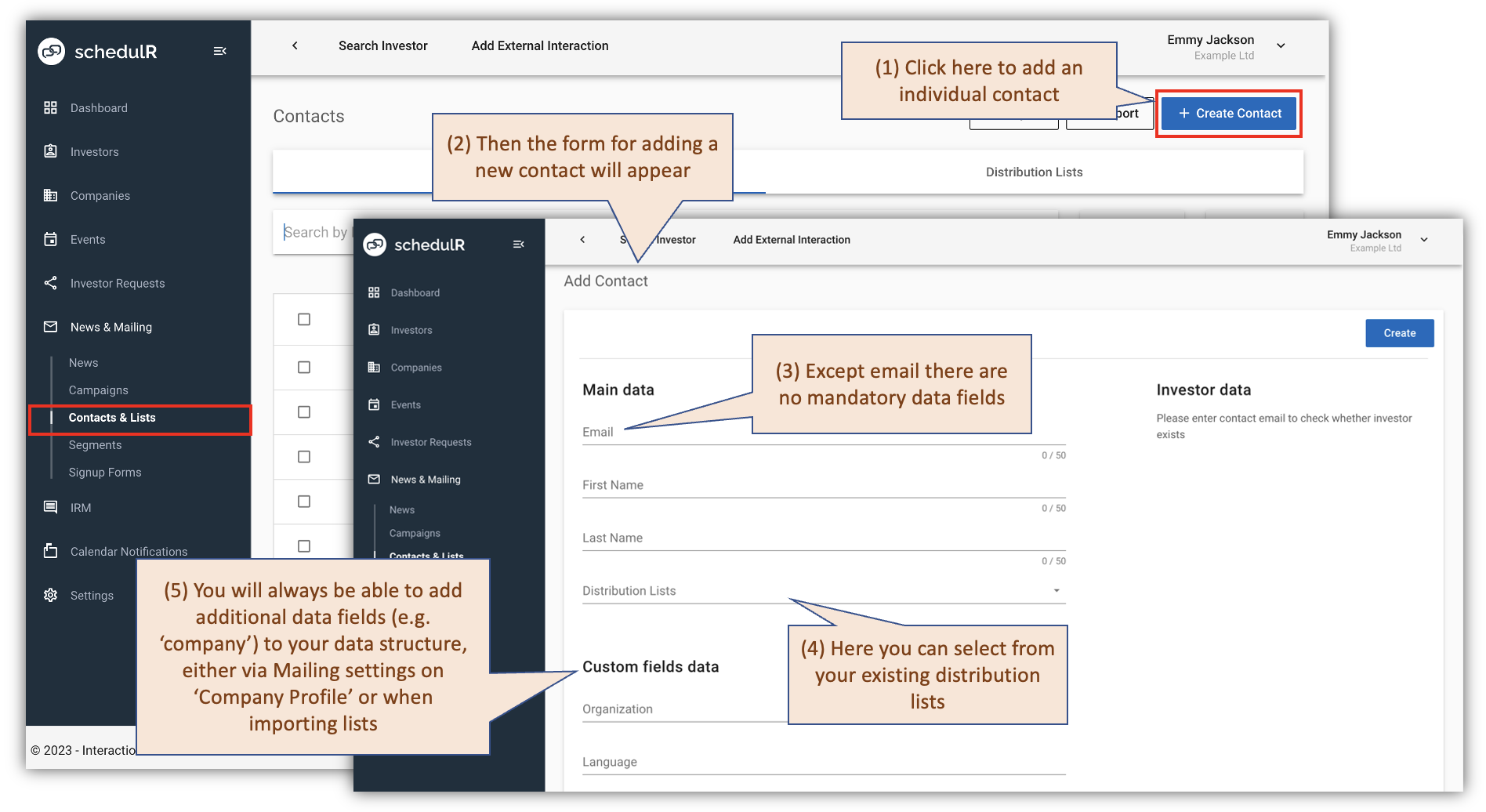 Figure 10.2 – Add Mailing contact one by one
Of course it also possible to import existing distribution lists or contacts, either by uploading a file or adding via
copy-paste. The process in both cases is very similar.
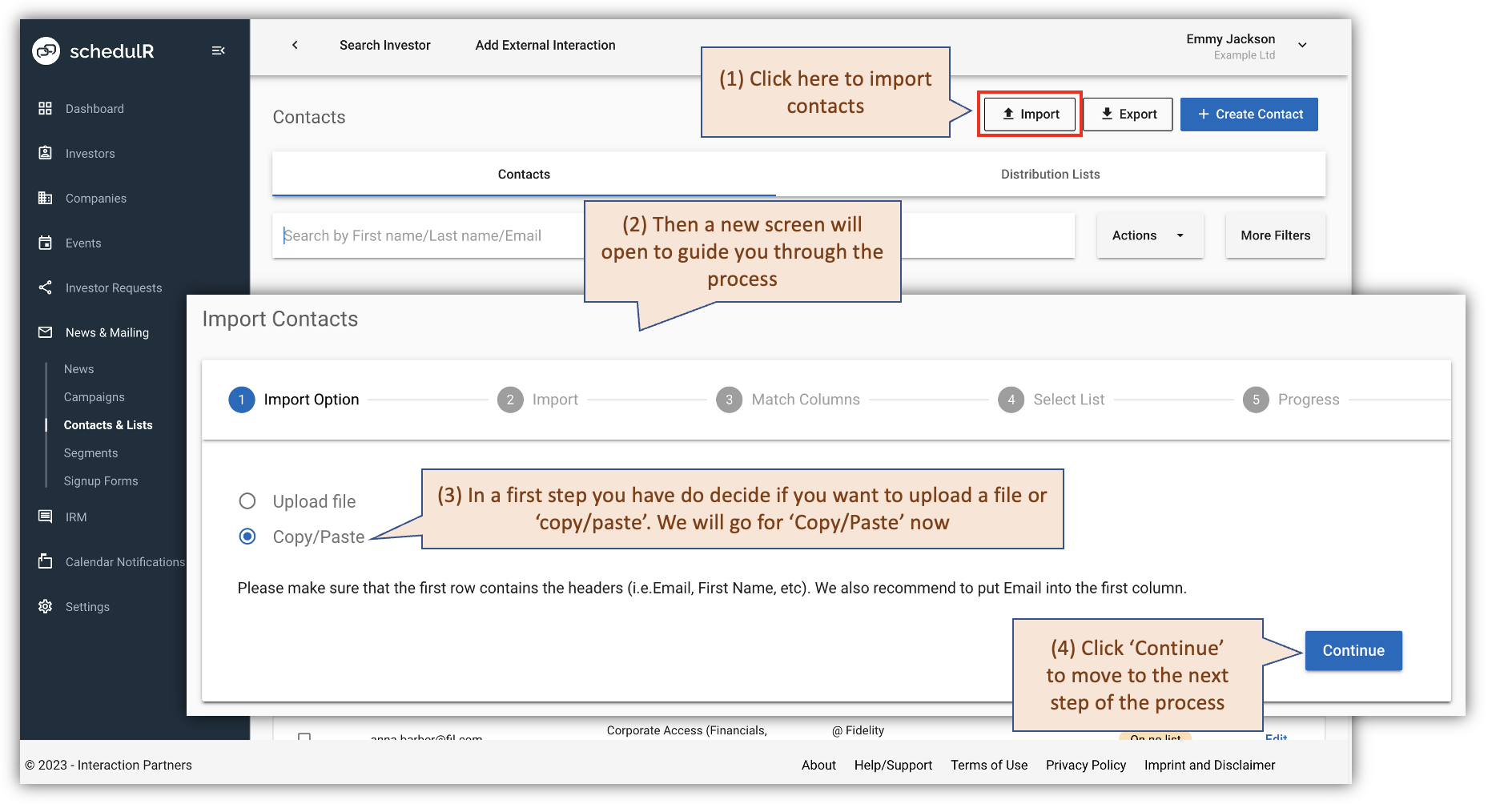 Figure 10.3 – Importing contacts – Import Option
In a next step we are defining the data that we want to import
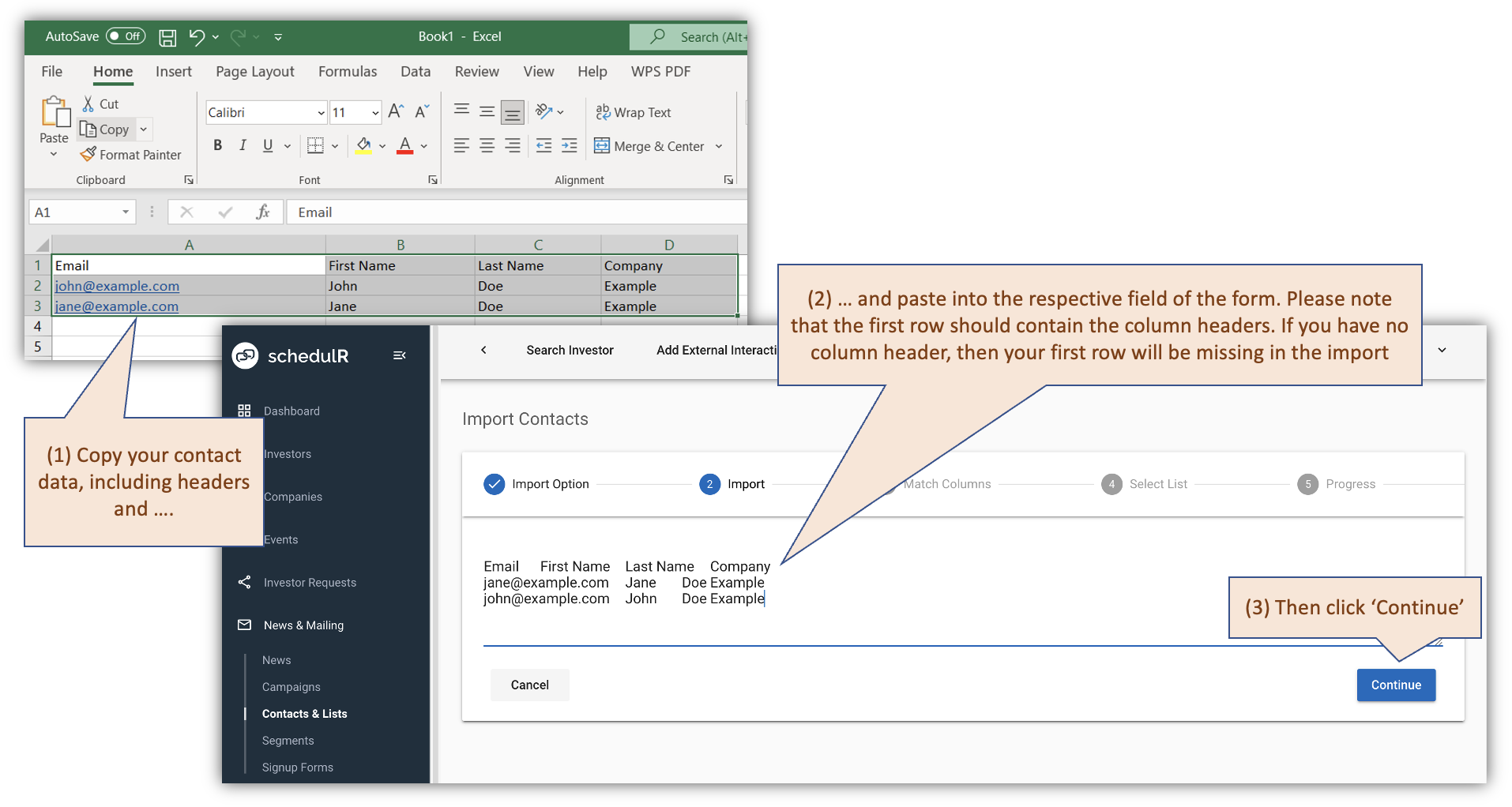 Figure 10.4 – Importing contacts – Import
Now we are matching the columns of your data with schedulR data fields.
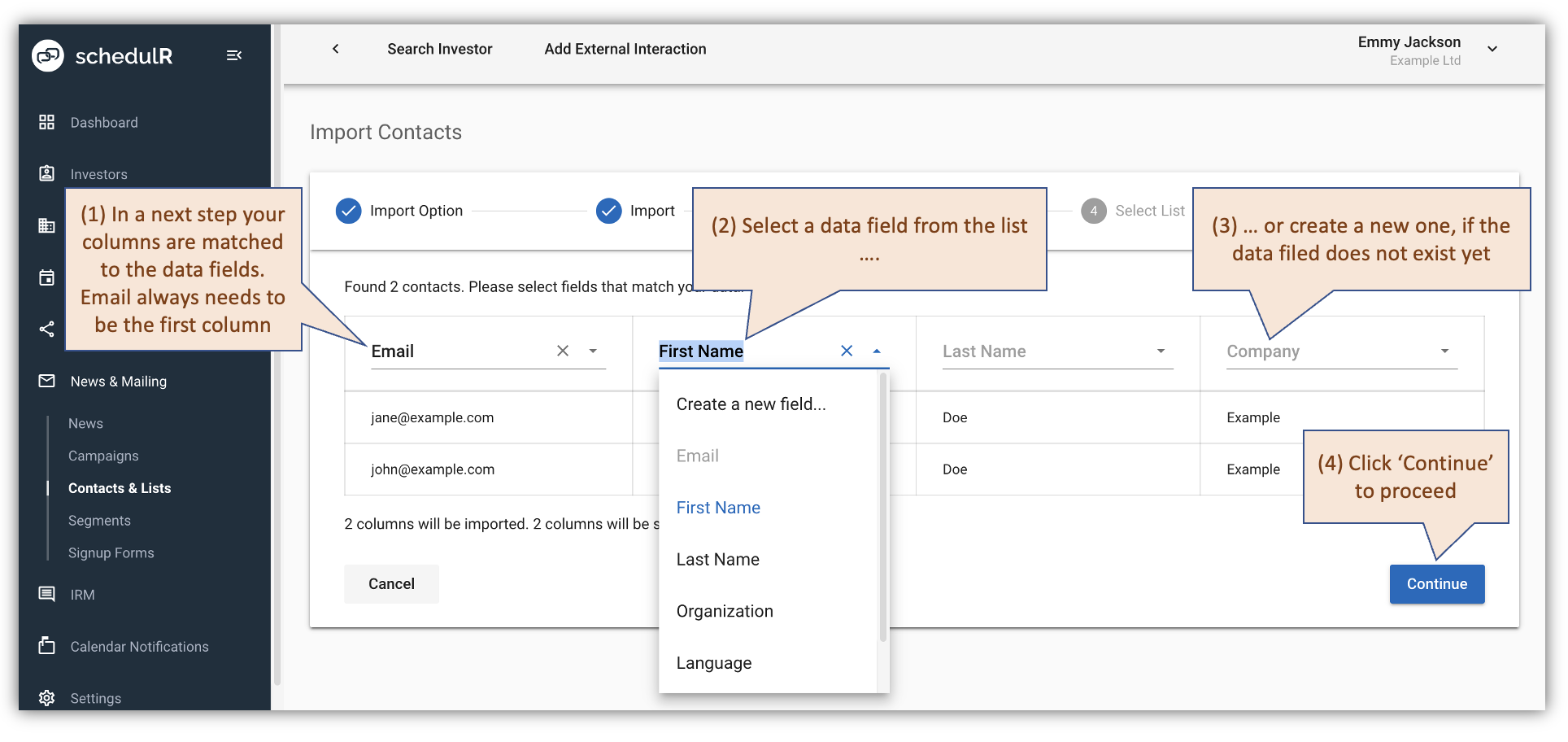 Figure 10.5 – Importing contacts – Matching columns
In a next step we are assigning these names to one or more distribution lists and import data
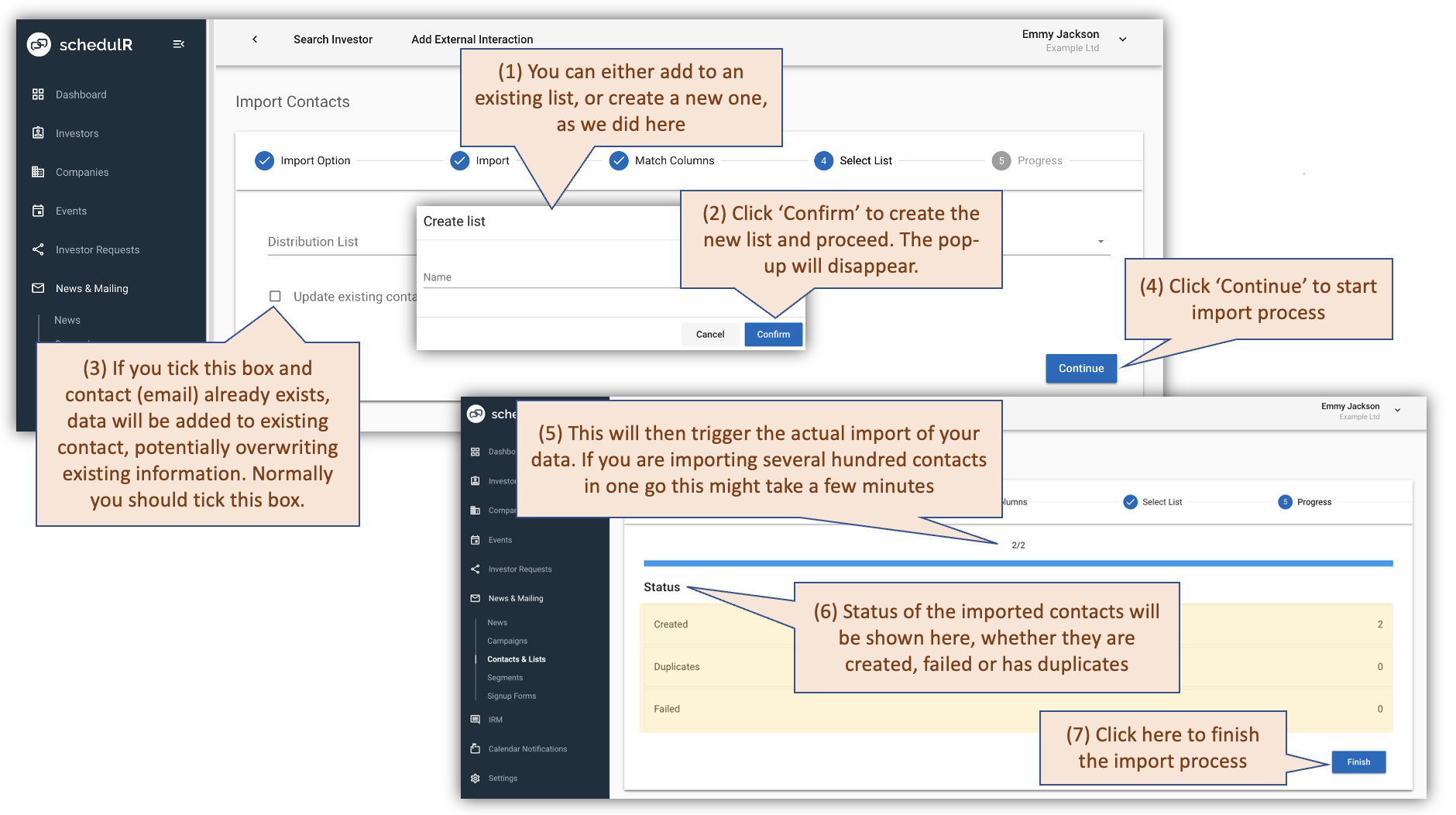 Figure 10.6 – Importing contacts – Select distribution list and import data
It is also possible to directly add a new contact to a distribution list. See below
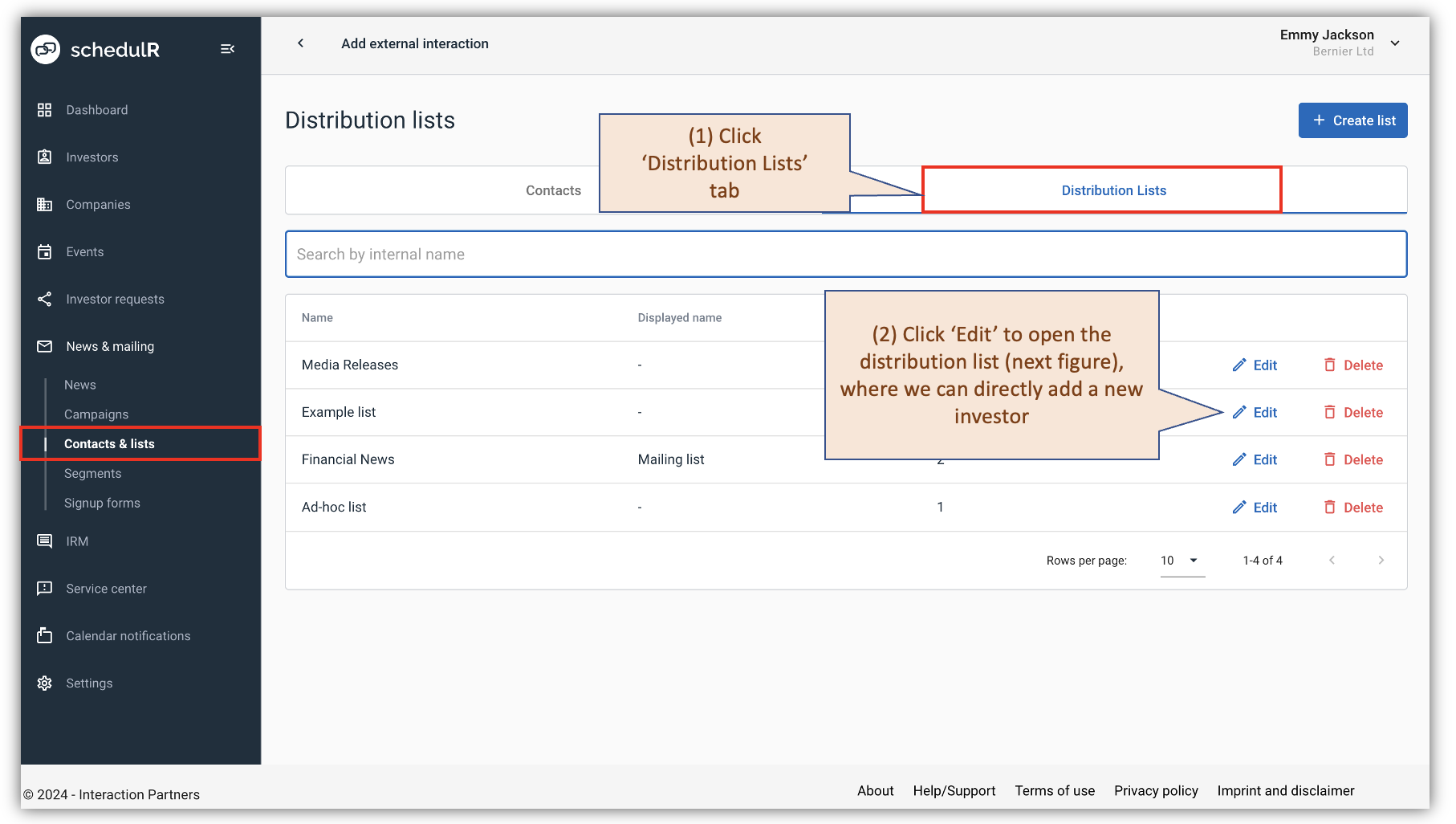 Figure 10.7 – Add contract to distribution list directly (1/2)
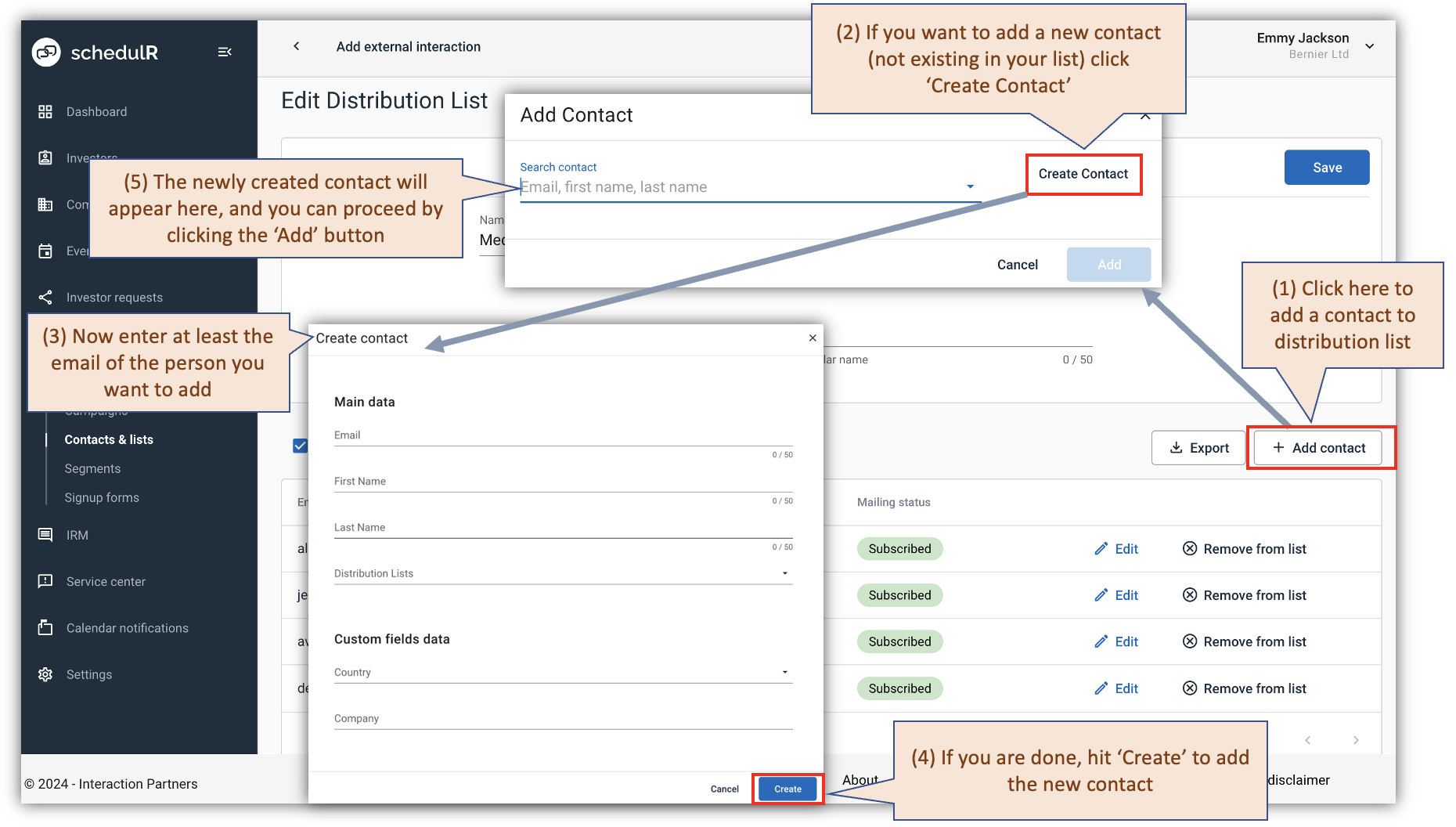 Figure 10.8 – Add contract to distribution list directly (2/2)