Creating a News item
We call it a News ‘item’ because it can be used for several distribution channels. If you click on create a ‘News’
then the process kicks of as described below.
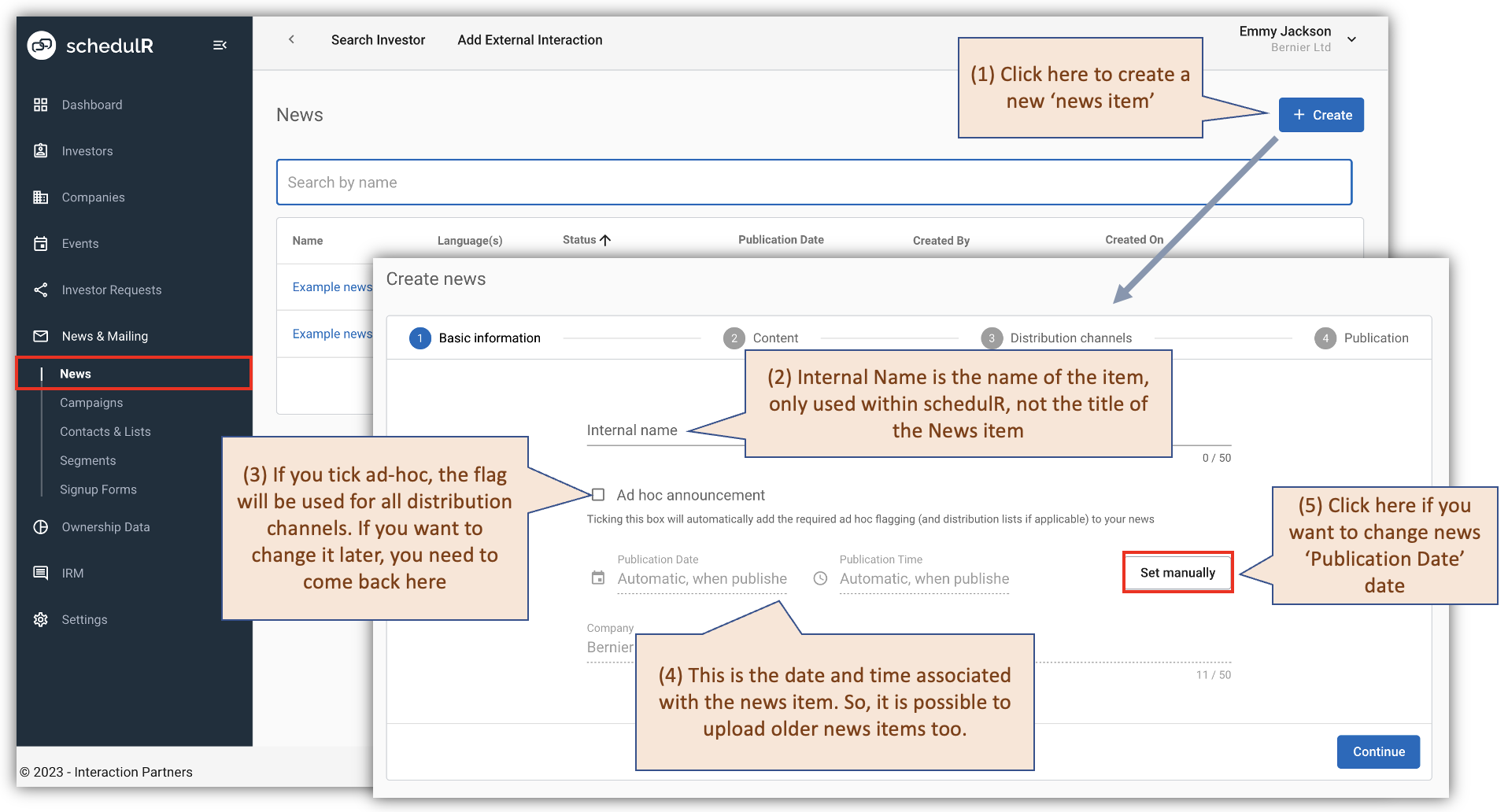 Figure 9.1 – News – Creating a News item
The second step is about content creation. We have opted for a simple editor that should more or less allow
you to copy paste an entire document from e.g. Word or Google docs in one Go. It is possible to add pictures,
but that has to be done manually.
 Figure 9.2 – News – Content
Please note when you copied from Word
-
that pictures may not resize correctly in Desktop Outlook. Although resizing the pictures may appear fine in the preview, users accessing emails via Desktop Outlook might still see large images. To avoid this issue, we recommend after pasting the document from Word, deleting pictures and importing them as files separately.
-
check your document for the indent on the right. After pasting text with the right indent it can look good on the desktop version, but on a mobile phone, the text may not fit with the specified indentation and will be displayed with transferred several letters in a line (depending on which indentation was specified).
The easiest way to fix something after pasting from Word is to paste that part without formatting and then add the format you need in the editor.
- If you encounter an indentation issue in a table after pasting it from Word, please try to fix that using the steps described below.
 Figure 9.2.1 – An issue with pasting tables
- If you experience an issue with list formatting—where the indent between the bullet point (or number) and the text is larger in the send test email than in the preview mode—please note that this problem occurs only in Outlook Classic.
The issue may be caused by using a VPN or by your IT security settings interfering with the cache, especially when copying and pasting content. If you're unable to work without a VPN, follow these steps :
-
cut the list
-
paste the list into Notepad (which removes all the messed-up formatting)
-
paste it into the editor again
-
format it manually (make it a list, assign font and font size)
It is of course possible to add links or upload PDFs, which will then displayed as links
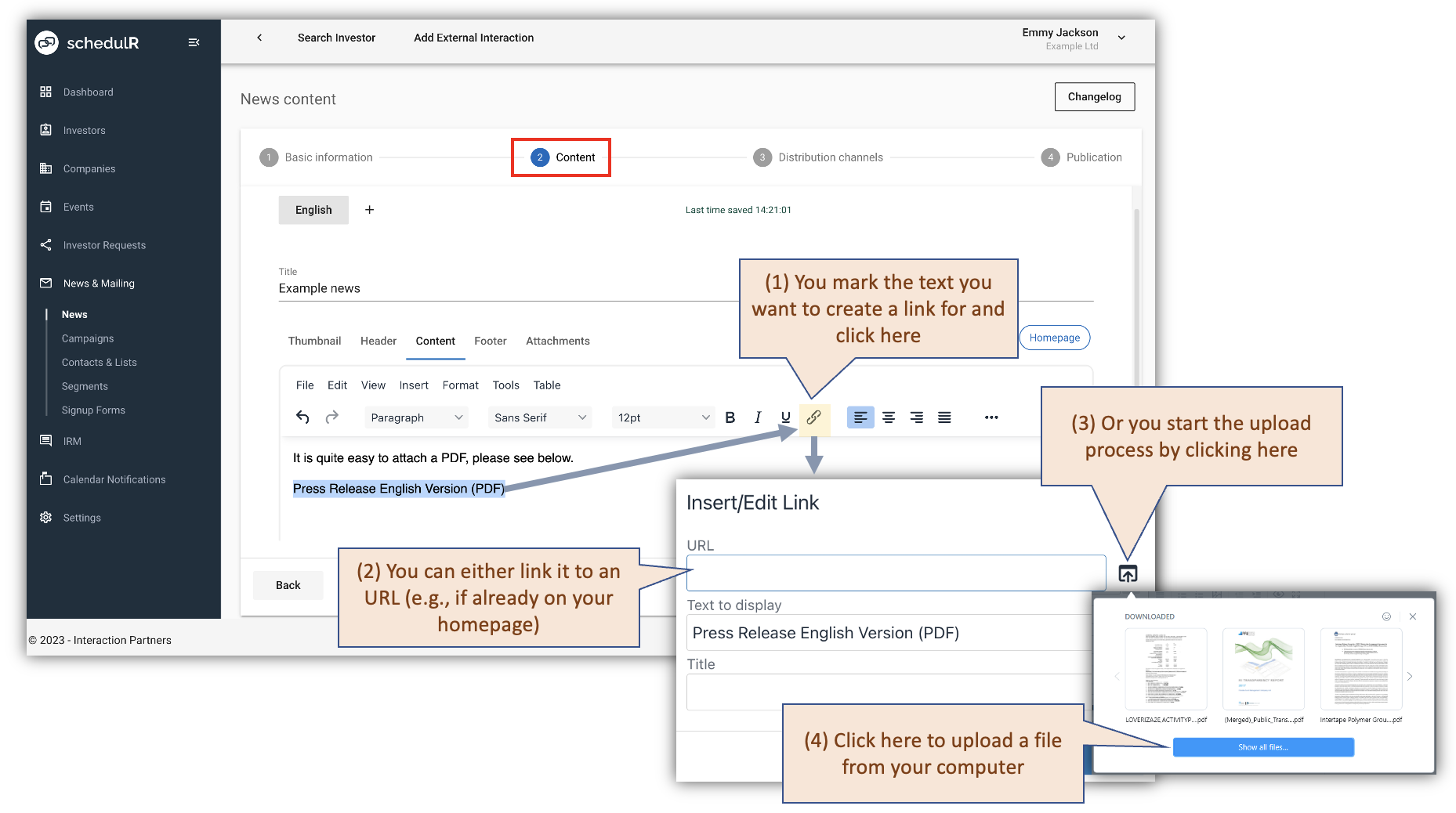 Figure 9.3 – News – URLs / PDFs
The following screenshots describe the tabs for editing the news, which will be available only if you have the "Homepage" permission.
If you don't have these tabs, move to the last step on this page Distribution channels.
 Figure 9.4 – News – Thumbnail
 Figure 9.5 – News – Header
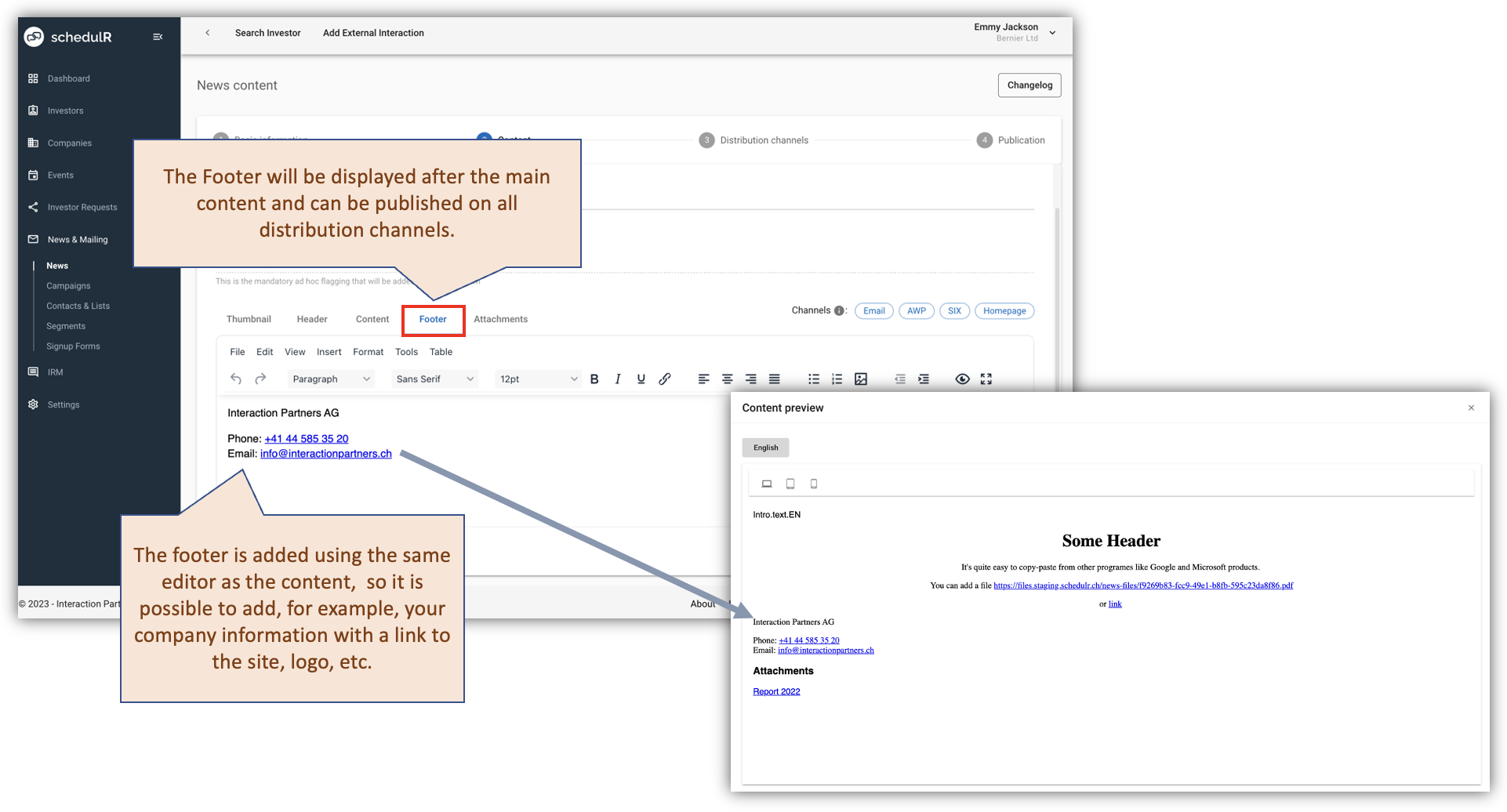 Figure 9.6 – News – Footer
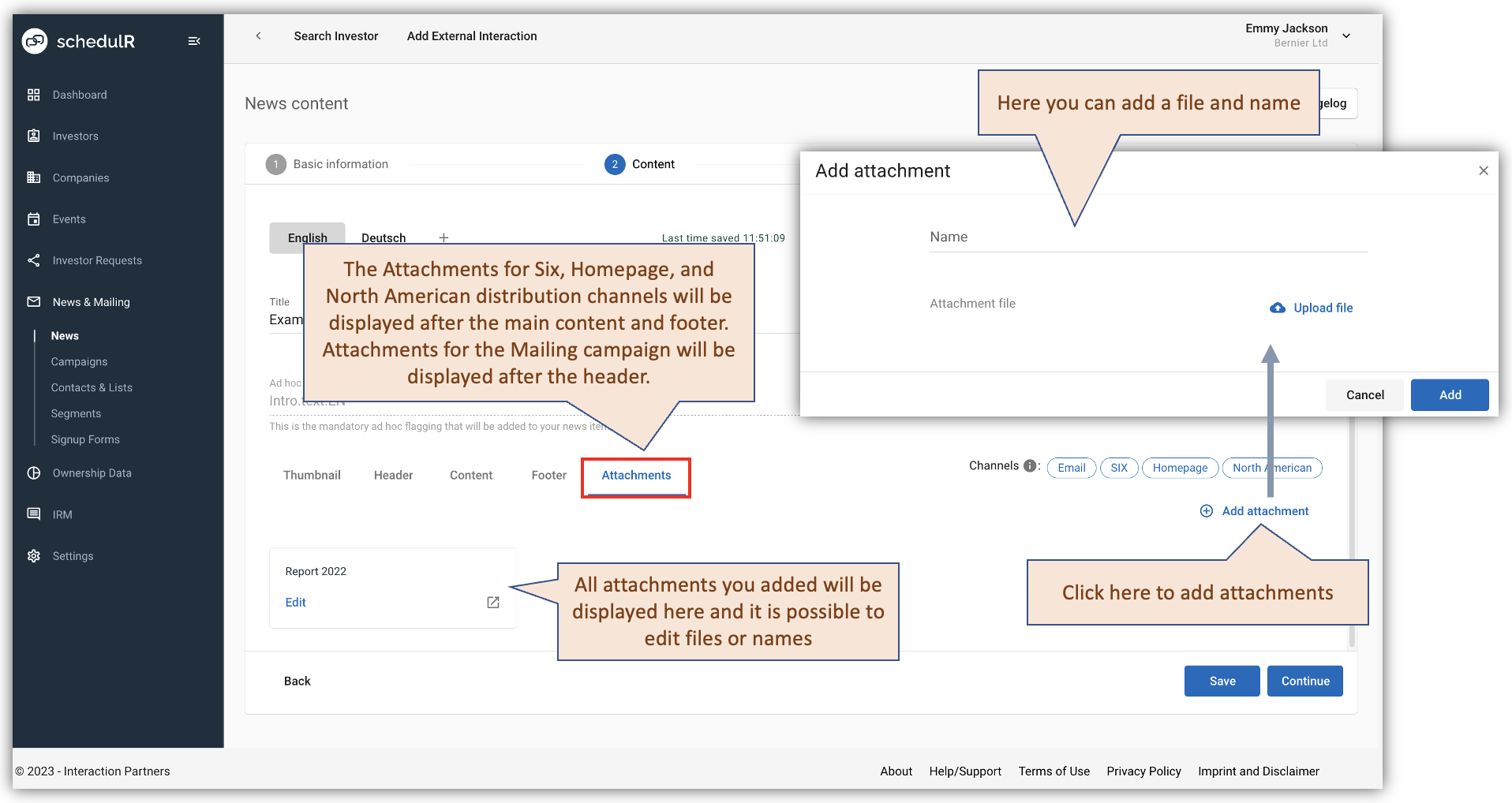 Figure 9.7 – News – Attachments
All tabs are translatable. The thumbnail is translatable as well, but by default, the main image is duplicated in all languages automatically, for ease of editing, since, as a rule, the image does not need translation.
In the next step you will be offered a variety of distribution channels for your news item, depending on the
country you are listed in.
 Figure 9.8 – News – Distribution Channels